
Your passwords, right in the page.
For Chrome, Brave and Edge on Windows. It talks only to the Tymbor app on your own PC; nothing about the pages you visit goes online.
Signing in
Click, pick, signed in.
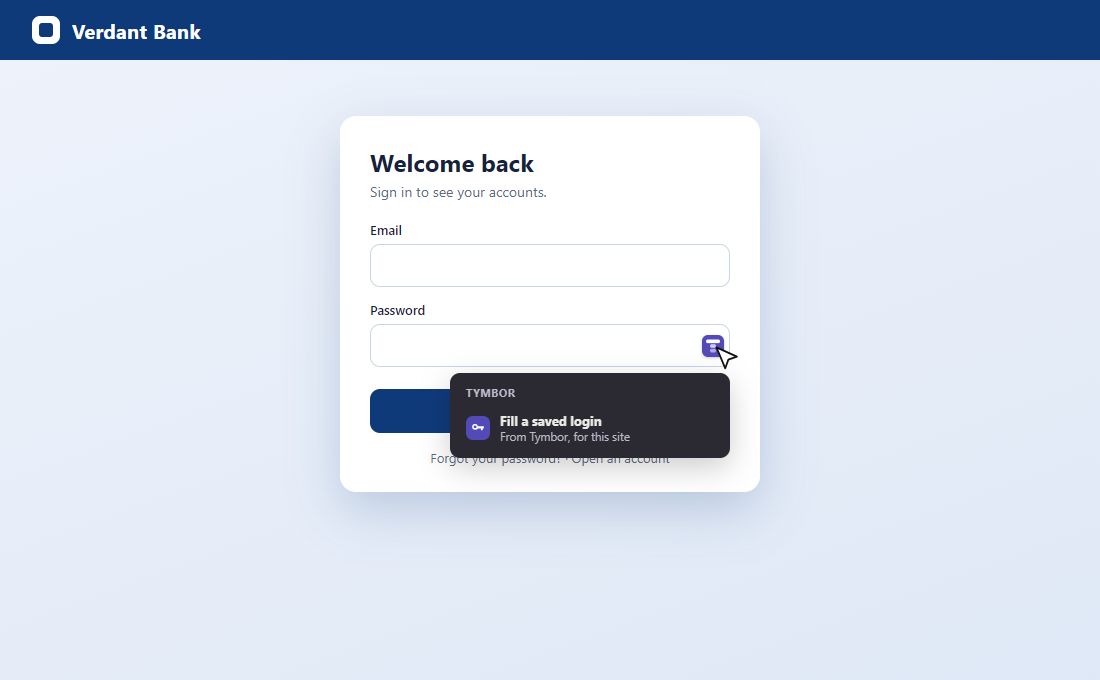
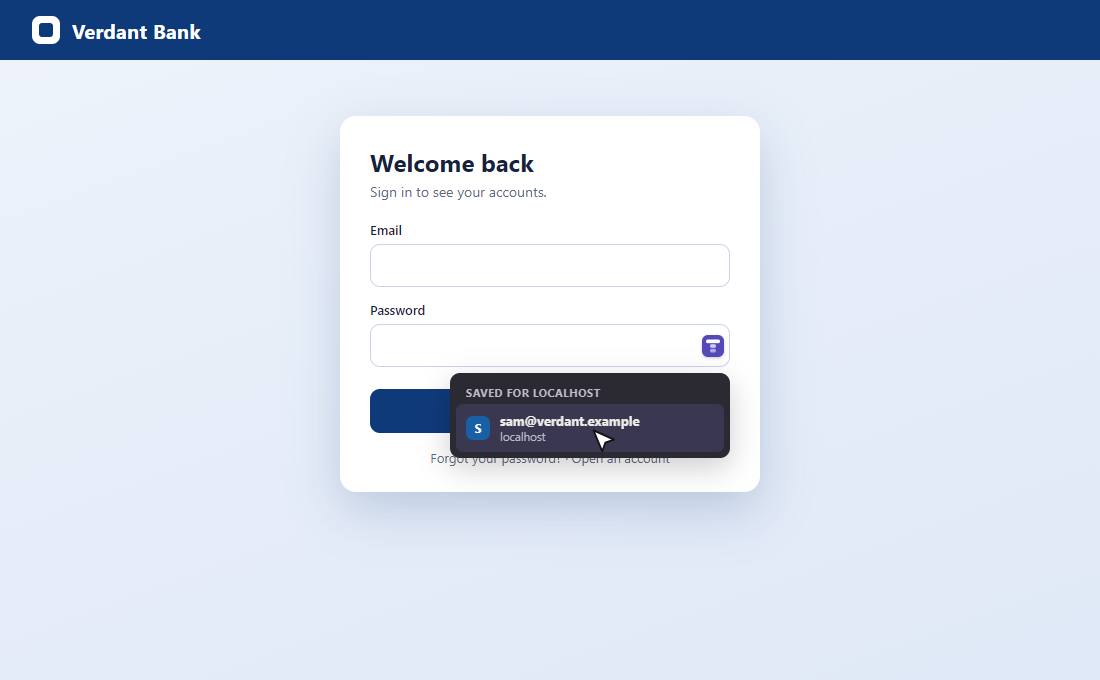
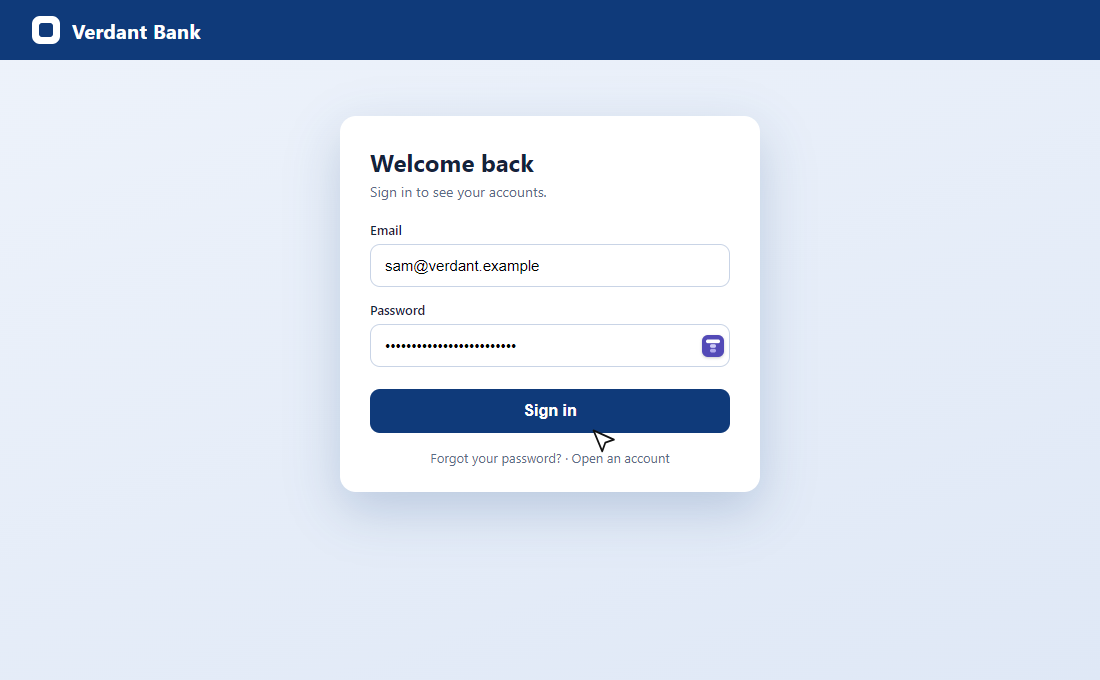
Tymbor puts a small button in password boxes. Click it, choose your login, and both boxes are filled.
- Click the Tymbor buttonIt appears inside the password box when you click it.
- Choose "Fill a saved login"Tymbor lists the logins you saved for this exact site.
- Pick oneYour username and password are filled in. You press Sign in.
Signing up
A strong password, kept for you.
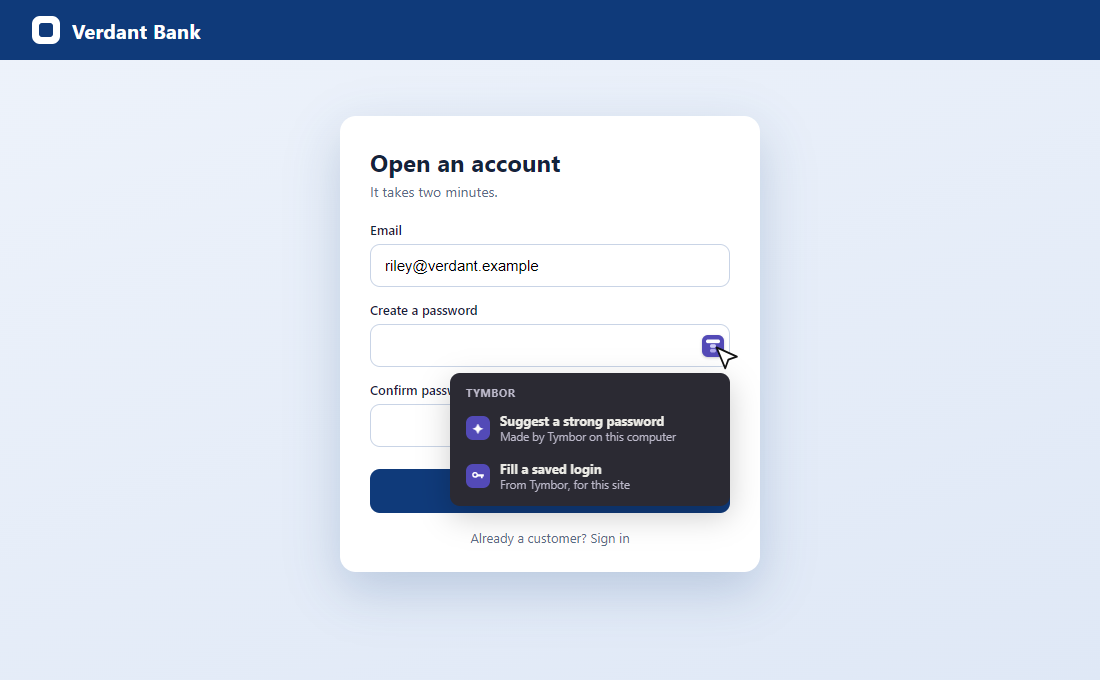
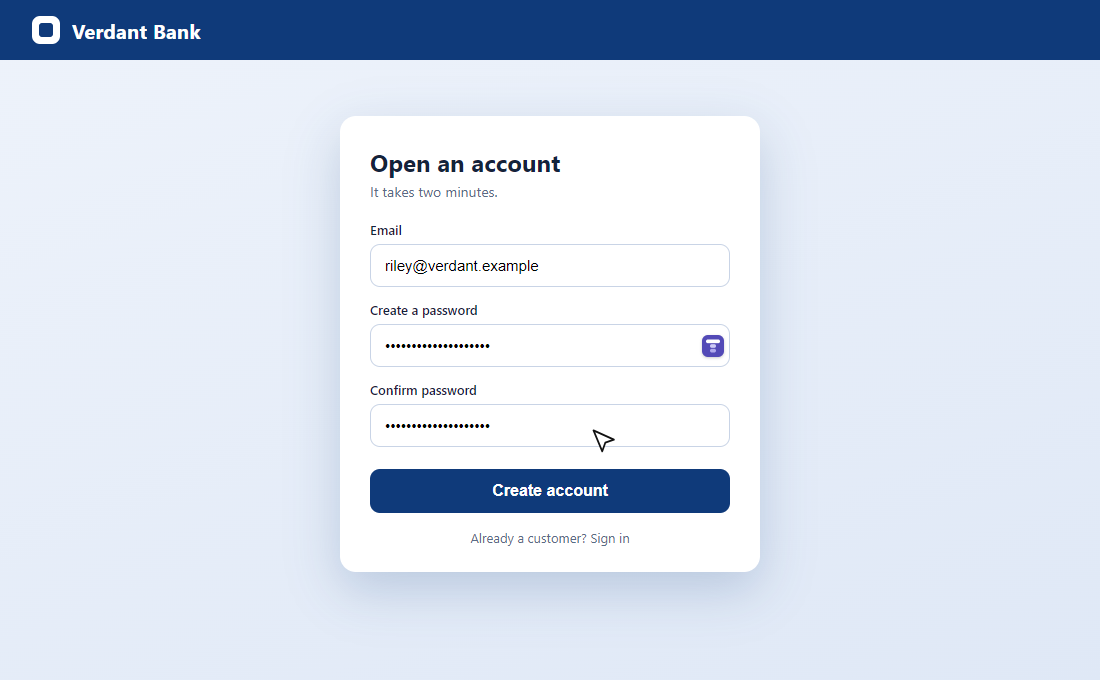
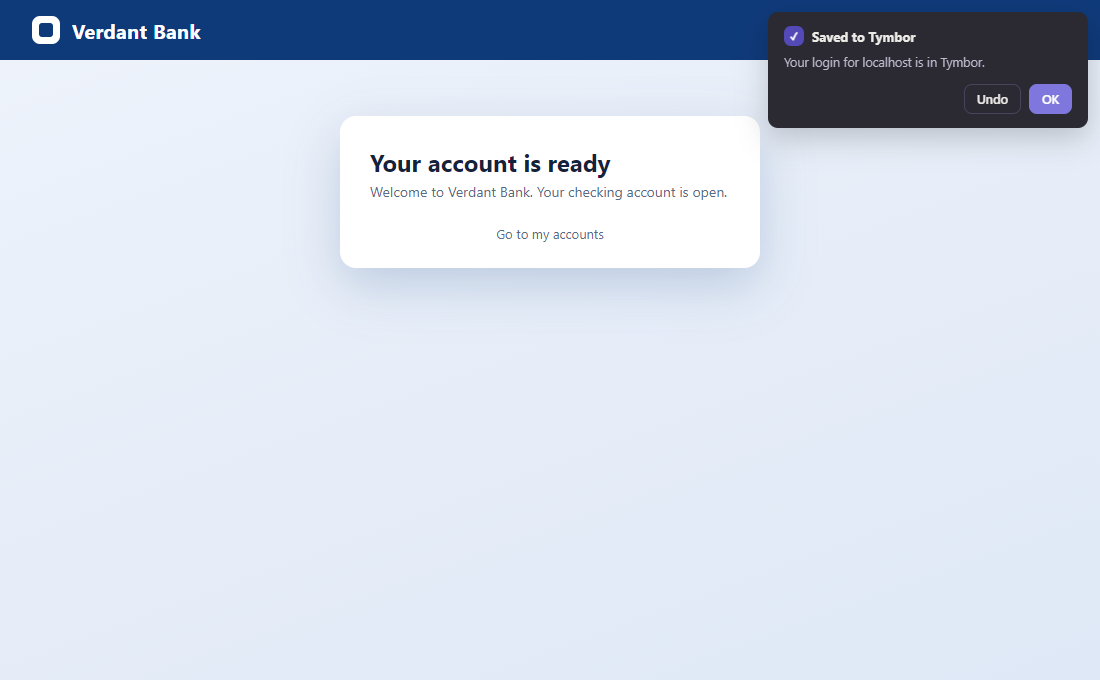
On a sign-up page, ask Tymbor for a strong password. It fills both password boxes, and keeps the login when the site accepts it.
- Click the Tymbor buttonOn a sign-up page the menu offers "Suggest a strong password".
- Suggest a strong passwordBoth password boxes are filled with a long random one.
- Create the accountWhen the site moves on, Tymbor saves the login and lets you undo it.
Built carefully
It only helps where it should.
The exact site only
A login is offered only on the site it was saved for, never on a look-alike address.
Your PC only
The extension talks to the Tymbor app on your computer. Your vault never goes through a website or a server.
You are asked first
It offers to fill and to save. A web page cannot tell it to hand over a password.
Locked means locked
When Tymbor is locked, the extension has nothing to give until you unlock the app.
Remember less. Be safer.
Tymbor is in beta now.