
Tap a login box. Tymbor fills it.
Set Tymbor as your Android autofill service and it works in your browser and in your apps, with your fingerprint or main key standing guard.
Signing in
The right login, one tap away.
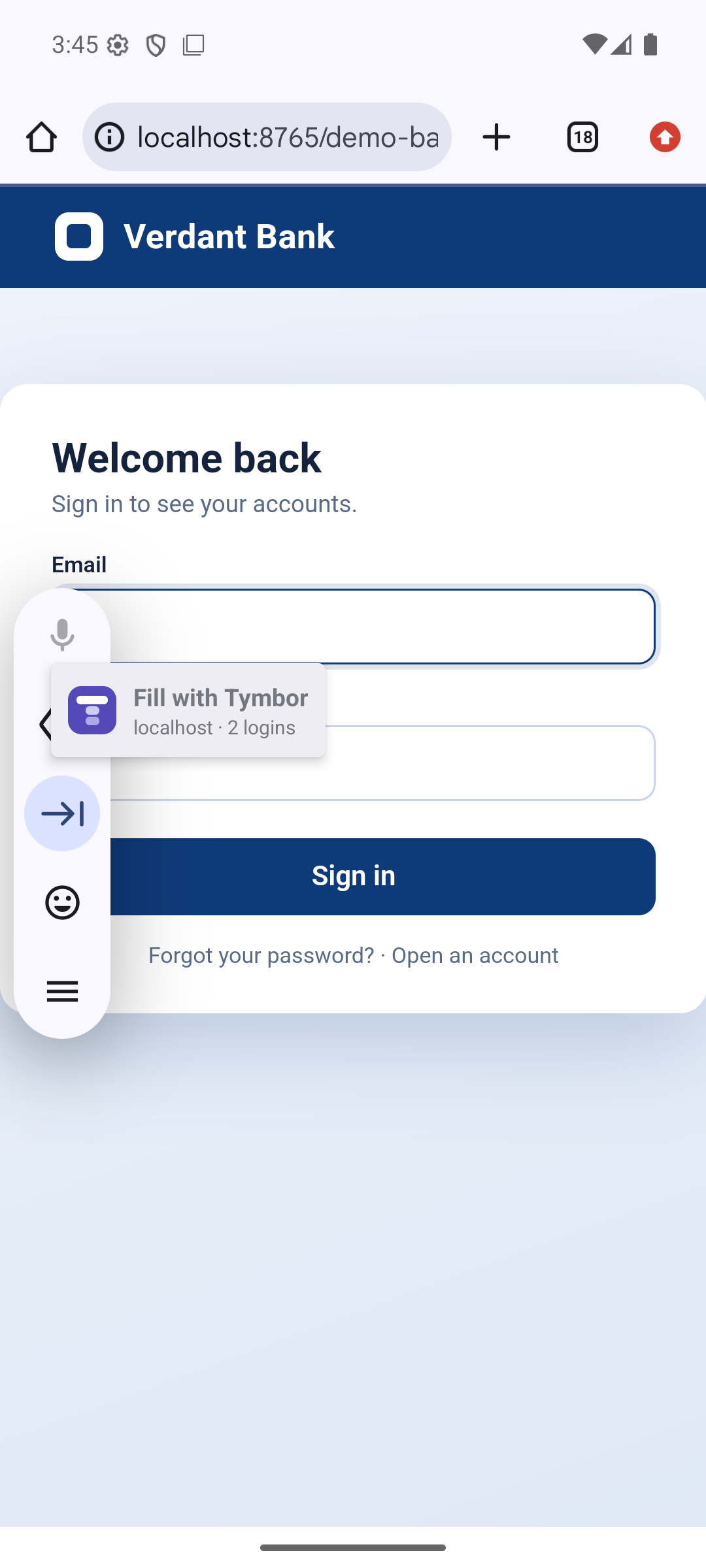
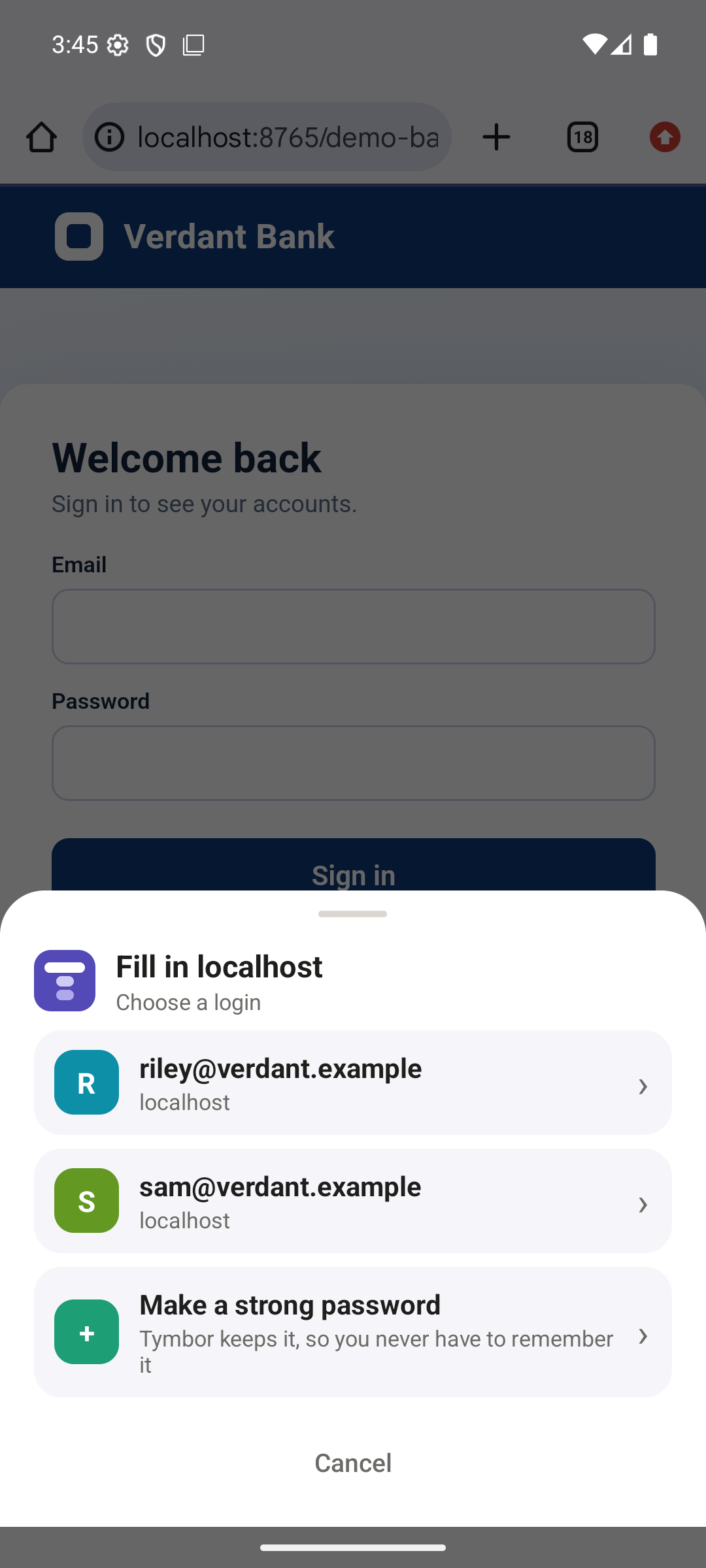
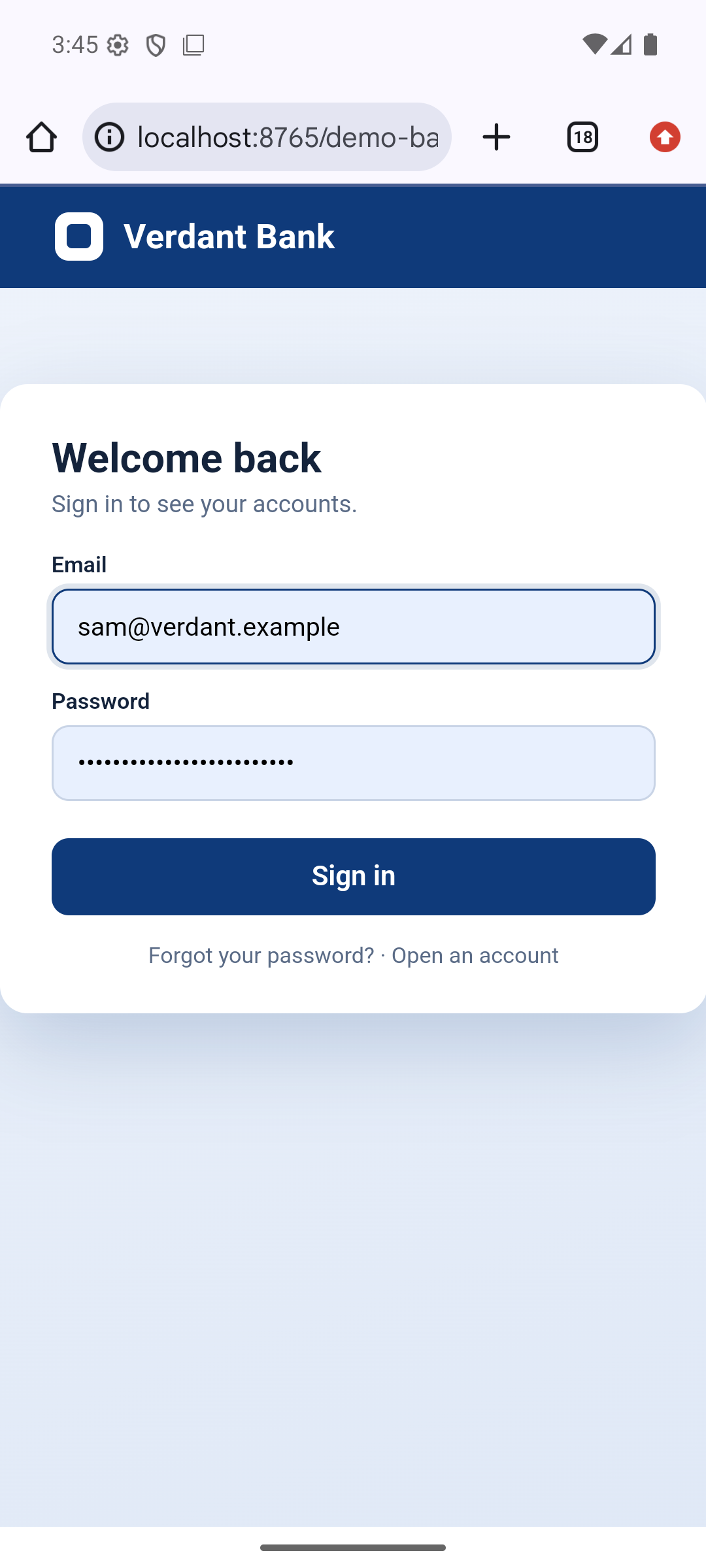
Tymbor offers your saved login on the keyboard, and shows which account it is before anything is filled in.
- Tap a login boxTymbor shows "Fill with Tymbor" above the keyboard.
- Check the accountA sheet shows the account, so you know it is the right one.
- Tap itYour username and password are filled in.
Signing up
Make a strong password. Save it for later.
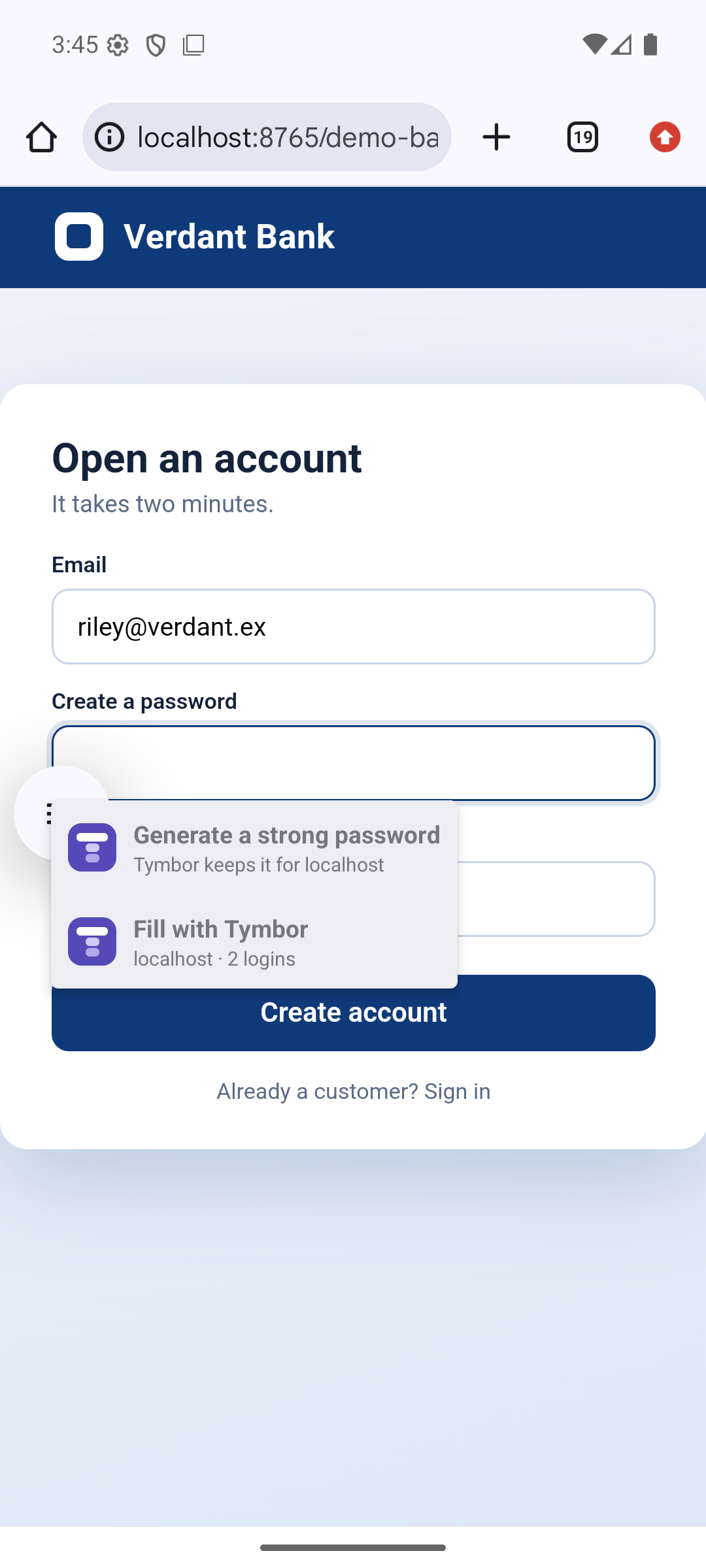
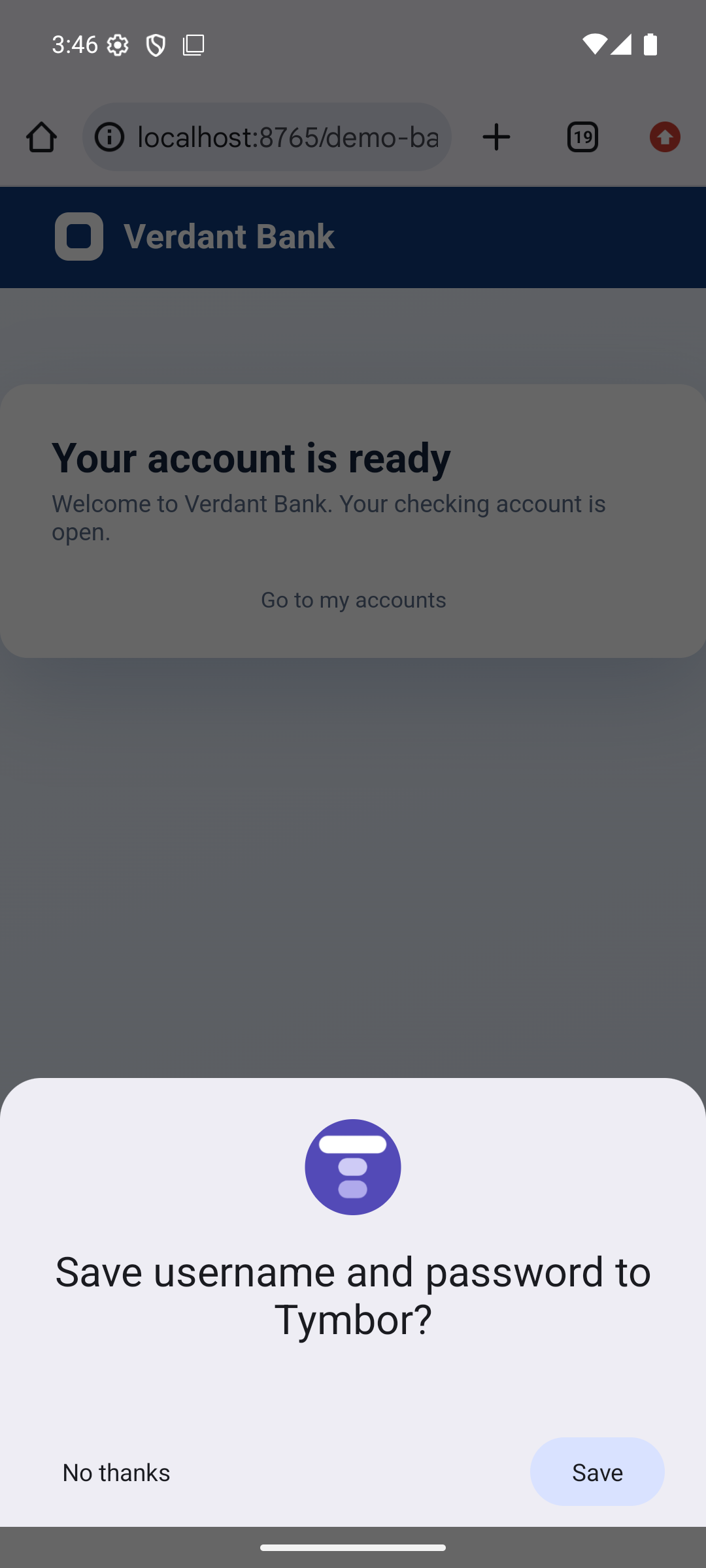
On a sign-up page, Tymbor offers to make a strong password for you. When you create the account, Android asks whether to save it to Tymbor.
- Tap the password boxTymbor offers "Generate a strong password".
- Create the accountAndroid asks: Save username and password to Tymbor?
- Tap SaveIt is in your vault, ready next time.
Setting it up
One switch in Android settings.
1. Open Settings in Tymbor
Settings, then Logins, then Autofill.
2. Choose Tymbor
Android lists autofill services. Pick Tymbor.
3. Unlock when asked
Tymbor asks for your fingerprint or main key before it fills a login.
4. Use it anywhere
In your browser and in apps, wherever there is a login box.
Remember less. Be safer.
Tymbor is in beta now.